Account Security
Enable two-factor authentication, manage sessions, and configure security notifications.
Security Overview
Your Legacy Key account protects sensitive information about your cryptocurrency holdings. We provide multiple layers of security to keep your data safe.
For detailed technical information about our security implementation, see our Security Documentation.
Two-Factor Authentication
Two-factor authentication (2FA) adds an extra layer of protection beyond your password. Even if someone obtains your password, they cannot access your account without the second factor.
Enabling 2FA
If you didn't set up 2FA during registration:
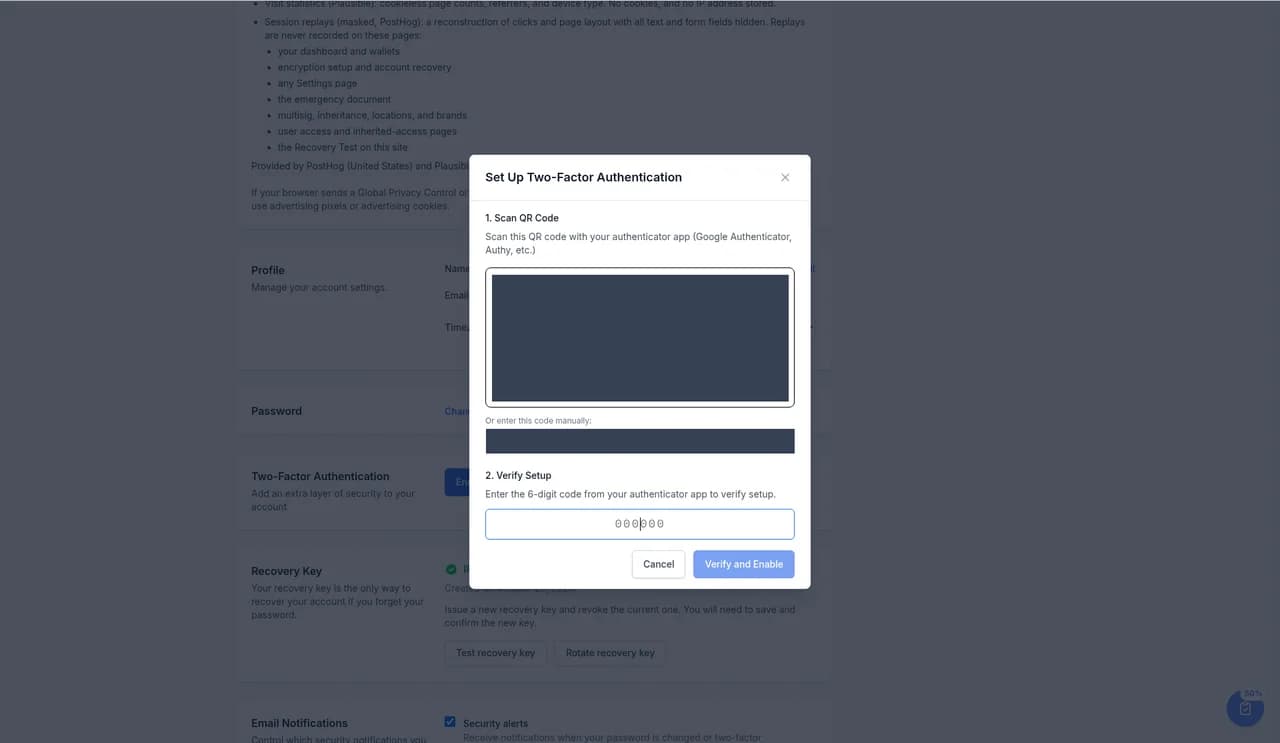
- Go to Settings, then Two-Factor Authentication
- Click Enable Two-Factor Authentication
- Scan the QR code with your authenticator app
- Enter the 6-digit code to verify
- Save your backup codes
Backup Codes
When you enable 2FA, you receive 10 one-time backup codes. Each code carries 80 bits of entropy and is formatted as five hexadecimal groups (XXXX-XXXX-XXXX-XXXX-XXXX). Use one if you ever lose access to your authenticator app.
Backup codes are different from your Recovery Key. Backup codes recover MFA only — they don't restore access if you forget your password. For that, you need your LK- Recovery Key. See the Recovery Key guide.
Critical: Store your backup codes securely (e.g., in a password manager or printed in a safe place). If you lose access to your authenticator and don't have backup codes, you may lose access to your account.
Disabling 2FA
To disable 2FA, go to Settings and click Disable 2FA. You'll need to verify with your current code. We don't recommend disabling 2FA, but the option is available if needed.
Password Security
Your password must meet these requirements:
- Minimum 12 characters
- At least one uppercase letter (A-Z)
- At least one lowercase letter (a-z)
- At least one number (0-9)
- At least one special character (!@#$%^&*...)
Changing Your Password
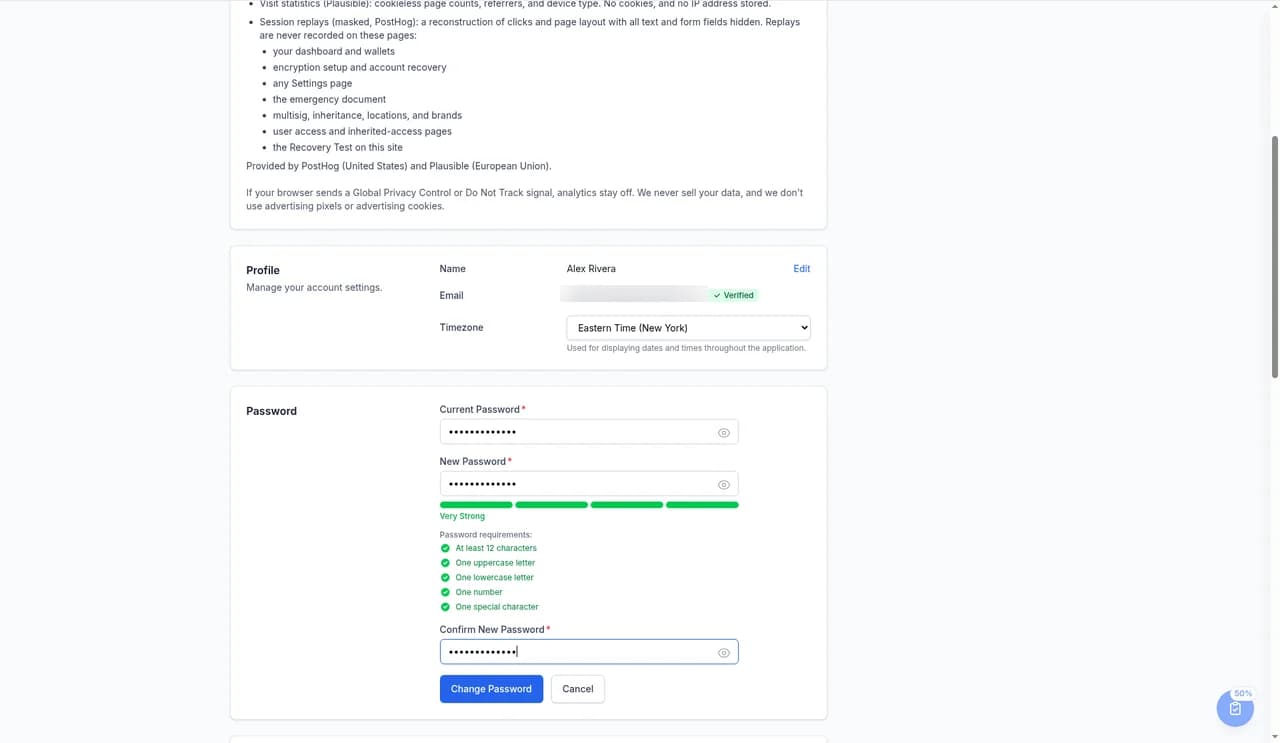
- Go to Settings, then Password
- Click Change Password
- Enter your current password
- Enter and confirm your new password
When you change your password, all other sessions are automatically logged out for security.
Your current session. Settings shows the device and browser you're signed in on and when the session started. Changing your password signs out all other sessions.
Security Notifications
Legacy Key sends email alerts for important security events:
Security Alert Types
Configuring Notifications
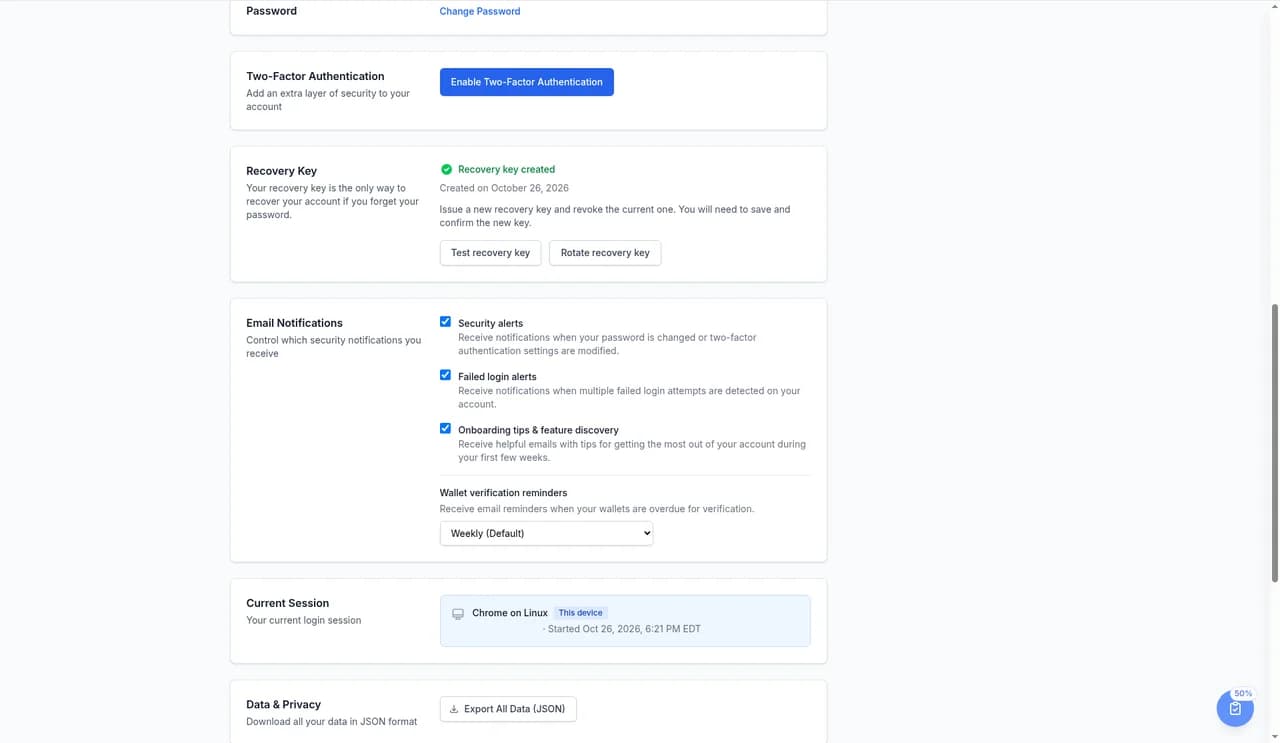
You can customize which alerts you receive in Settings → Email Notifications: Security alerts, Failed login alerts, Onboarding tips & feature discovery, and Wallet verification reminders. We recommend keeping all security notifications enabled.
Account Lockout Protection
To protect against brute-force attacks:
- Login attempts: After 5 failed attempts, login is temporarily blocked for 15 minutes
- MFA attempts: After 5 failed 2FA codes, account is locked for 15 minutes
- Password reset: Limited to 5 requests per 15 minutes per email address (shares the login rate limiter)
If you're locked out, wait for the lockout period to expire or contact support.
Data Export
You can export all your data at any time:
- Go to Settings → Data & Privacy
- Click Export All Data (JSON)
- Verify with your password
- Download the JSON file containing all your data
The export includes all wallets, backup locations, verification history, and settings. This ensures you always have access to your information.
Deleting Your Account
If you decide to delete your account:
- Go to Settings, then Delete Account
- Click Delete My Account
- Confirm with your password and by typing delete my account
- Your data will be permanently deleted
Warning: Account deletion is permanent and cannot be undone. Export your data first if you want to keep a copy.
Security Best Practices
Follow these practices to keep your account secure:
- Use a unique password: Don't reuse passwords from other sites
- Keep 2FA enabled: The single most effective protection
- Watch your security alerts: keep Security alerts and Failed login alerts turned on
- Keep your email secure: Your email is used for account recovery
- Don't share credentials: Use the sharing feature instead
- Log out on shared devices: Always log out on public computers
Getting Help
If you experience any security issues or have questions:
- General support: [email protected]
- Security issues: [email protected]
We typically respond within 24 hours for general inquiries and prioritize security reports.
You're All Set!
Congratulations on completing the Legacy Key user guide. Your hardware wallet documentation is now organized, secure, and ready for the future. Remember to verify your wallets regularly and keep your Emergency Access Document updated.