Adding Wallets
Add your hardware wallets, record serial numbers, and organize them with tags and notes.
Adding Your First Wallet
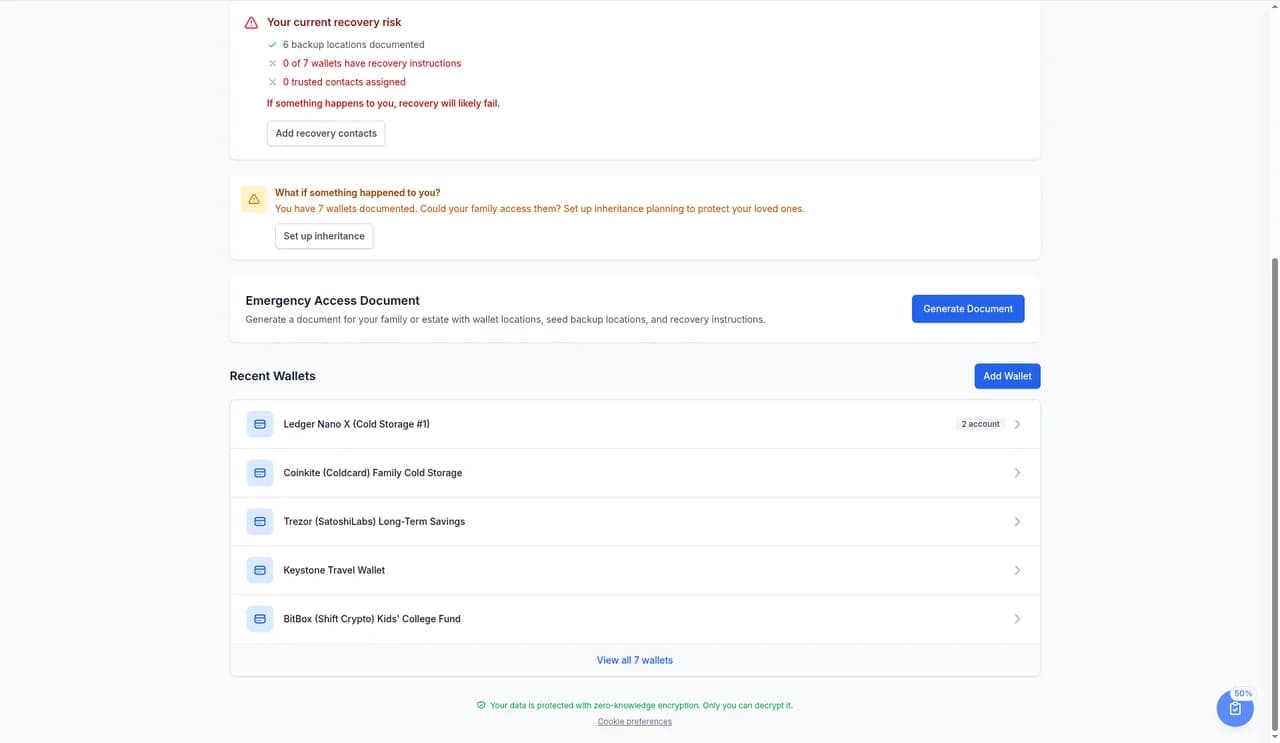
To add a hardware wallet, click the Add Wallet button on your dashboard or navigate to the Wallets section.
Wallet Information
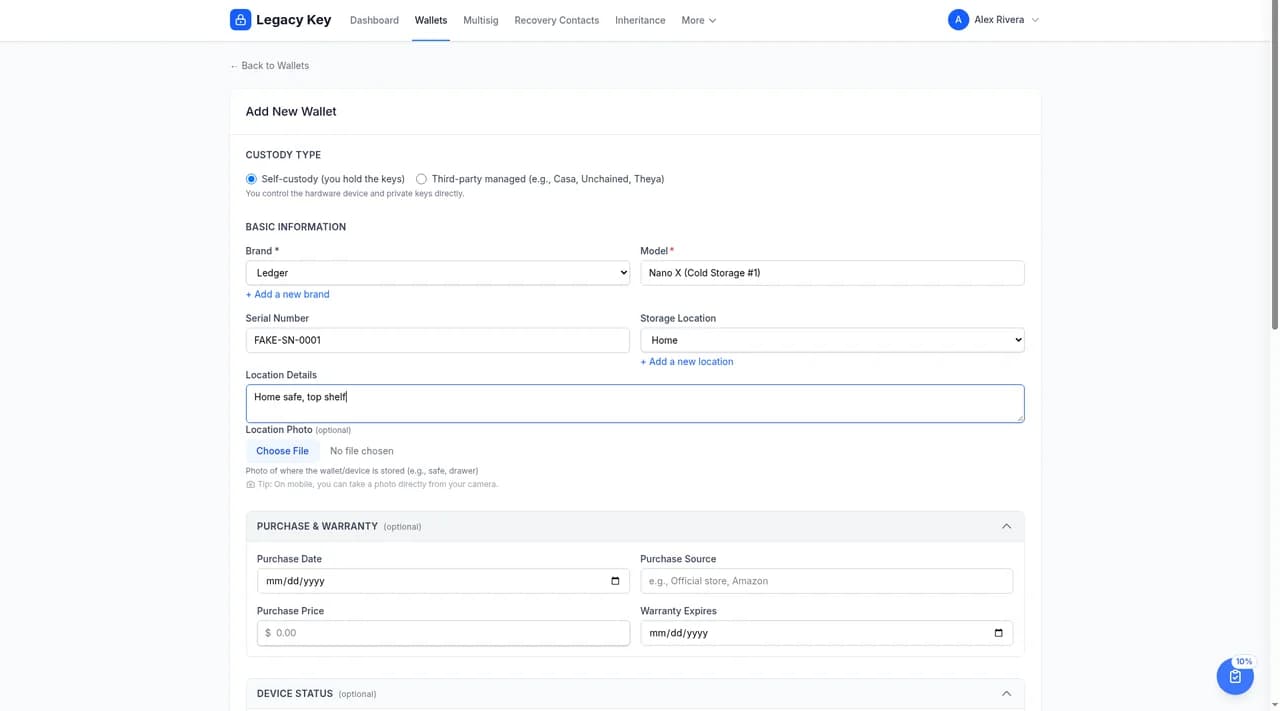
When adding a wallet, you can record the following information:
Basic Details
- Brand: The manufacturer (Ledger, Trezor, Coldcard, etc.)
- Model: The specific model (Ledger Nano X, Trezor Model T, etc.)
Legacy Key names each wallet from its brand and model, for example Ledger Nano X. To tell similar devices apart, add a label to the model, like Nano X (Cold Storage #1), which shows as Ledger Nano X (Cold Storage #1).
Identification (Encrypted)
- Serial Number: The device's serial number for identification
- Firmware Version: Current firmware version installed
- Purchase Date: When you acquired the device
Security Note: Serial numbers and other sensitive details are encrypted with AES-256-GCM before being stored. Only you can view this information.
Accounts and Derivation Paths (Encrypted)
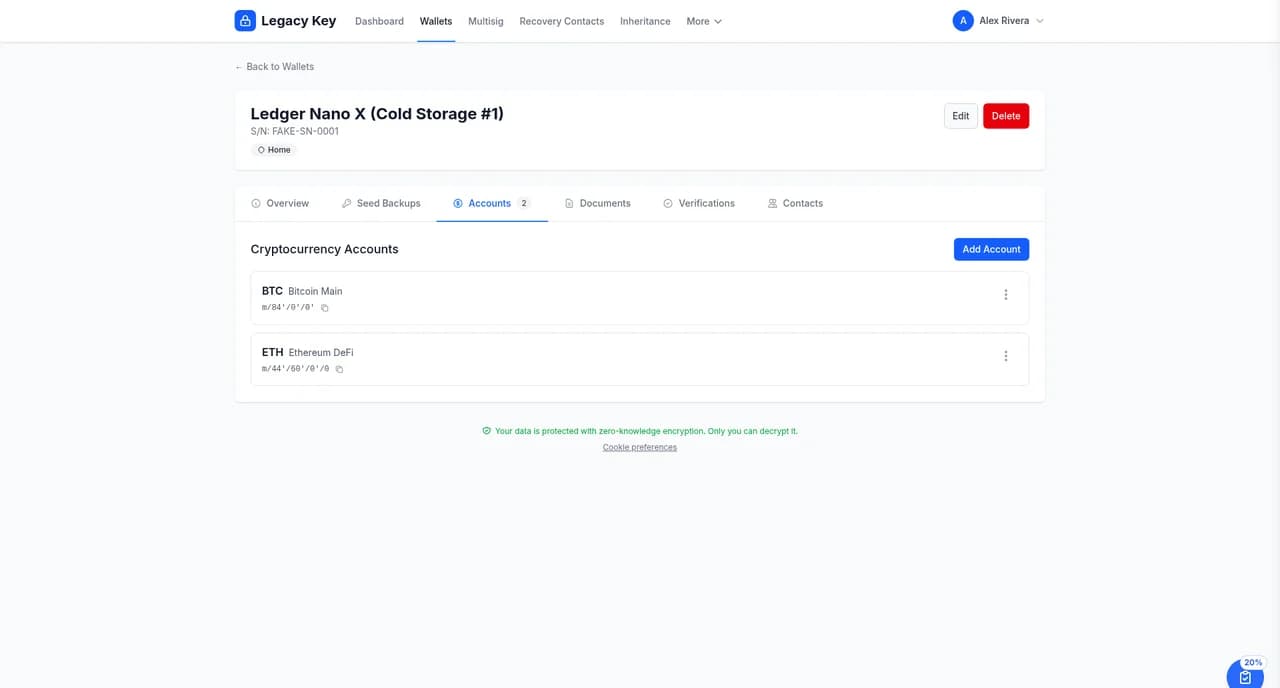
After you create the wallet, open it, go to the Accounts tab, and select Add Account to document each cryptocurrency account and its derivation path:
- Account Name: E.g., "Bitcoin Main", "Ethereum DeFi"
- Cryptocurrency: BTC, ETH, etc.
- Derivation Path: e.g., m/84'/0'/0' for native SegWit Bitcoin, or m/44'/60'/0'/0 for Ethereum (the app's default for ETH)
Notes (Encrypted)
Add any additional notes about the wallet, such as:
- What the wallet is primarily used for
- Any special configuration or setup notes
- Passphrase hints (never store the actual passphrase)
Photos (Encrypted)
You can optionally attach photos of the device — for example, a picture of the wallet next to its serial-number sticker, or a shot of the back panel. Photos are encrypted client-side before upload and only ever visible to you and your shared users.
Custody Type
Not every asset lives on a hardware wallet. When adding a wallet, choose whether the holdings are held in self-custody or by a third-party service such as an exchange or custodian. For third-party-custodied assets you can also record the service name and URL — for example, the exchange where the account lives — so trusted contacts know where to look during recovery.
Use third-party custody for: exchange accounts (Coinbase, Kraken, etc.), custodial wallets, brokerages, and any asset that isn't recoverable from a seed phrase you control.
Warning: Never enter your actual seed phrase or passphrase. Legacy Key is designed to document where these are stored, not to store them directly.
Supported Hardware Wallets
Legacy Key is hardware-agnostic and works with any hardware wallet, including:
Organizing Your Wallets
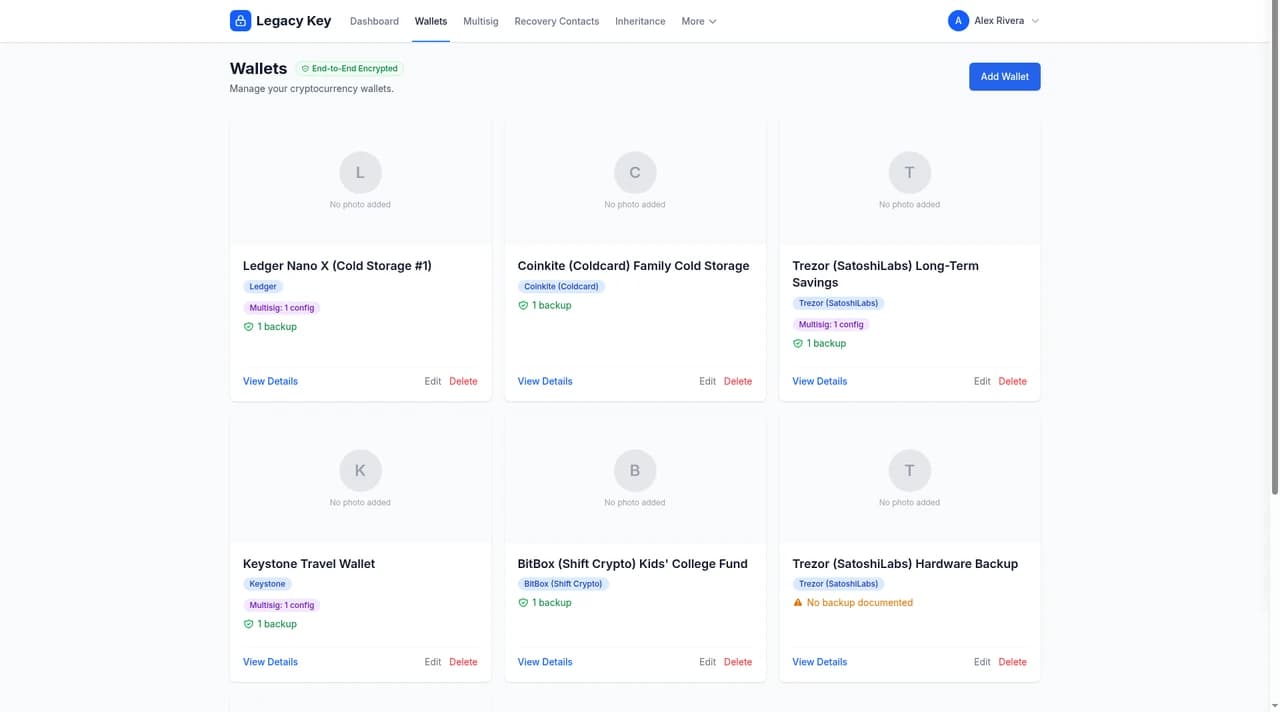
Your wallets appear as cards on the Wallets page. Each card shows the brand, how many seed backups are documented (or a warning if none are), and whether the wallet is part of a multisig setup. Select View Details to open a wallet, or Edit or Delete from the card.
Editing and Deleting Wallets
To edit a wallet, click on it to view details, then click Edit. You can update any information at any time.
To delete a wallet, open the wallet details and click Delete. You'll be asked to confirm before the wallet is permanently removed.
Next Steps
Now that you've added your wallets, the next step is to document where your seed phrase backups are stored. Continue to the Backup Locations guide.